Product Details
The product detail view provides comprehensive information about a data product, organized into focused tabs for different concerns.
Supported Product Types
Qarion ships with a rich set of built-in product types that cover traditional data assets, AI/ML models, feature stores, media datasets, and prompt collections. When a new space is created, the following types are available by default:
| Type | Category | Description |
|---|---|---|
| Table | Data Infrastructure | Database table or view |
| Dashboard | Data Infrastructure | Analytics dashboard or report |
| API | Data Infrastructure | REST or GraphQL API endpoint |
| Data Stream | Data Infrastructure | Real-time data stream or topic |
| File/Dataset | Data Infrastructure | File or dataset (CSV, Parquet, etc.) |
| Notebook | Data Infrastructure | Jupyter or analysis notebook |
| ML Model | AI & ML | Machine learning model |
| Feature Store | Feature Store | ML feature serving platform |
| Feature Group | Feature Store | Collection of related ML features |
| Video | Media & Content | Video dataset or recording |
| Image | Media & Content | Image dataset or collection |
| Audio | Media & Content | Audio dataset or recording |
| Text Collection | Media & Content | Text corpus or document collection |
| 3D Model | Media & Content | 3D model or point cloud |
| Prompt Collection | Prompt & GenAI | Managed collection of AI prompts |
Each product type unlocks specialized metadata tabs and features. For example, ML Models get a Model Details tab, media types get a File Metadata tab, and Feature Stores get a Feature Groups tab. Space administrators can also create custom types with their own icons and colors through the space settings.
For full details on each type's capabilities, see the Product Types Reference.
Accessing Product Details
Click any product card in the catalog to open its detail page. The URL follows the pattern:
/catalog/{product-id}
You can also use the product's slug for programmatic access.
Page Layout
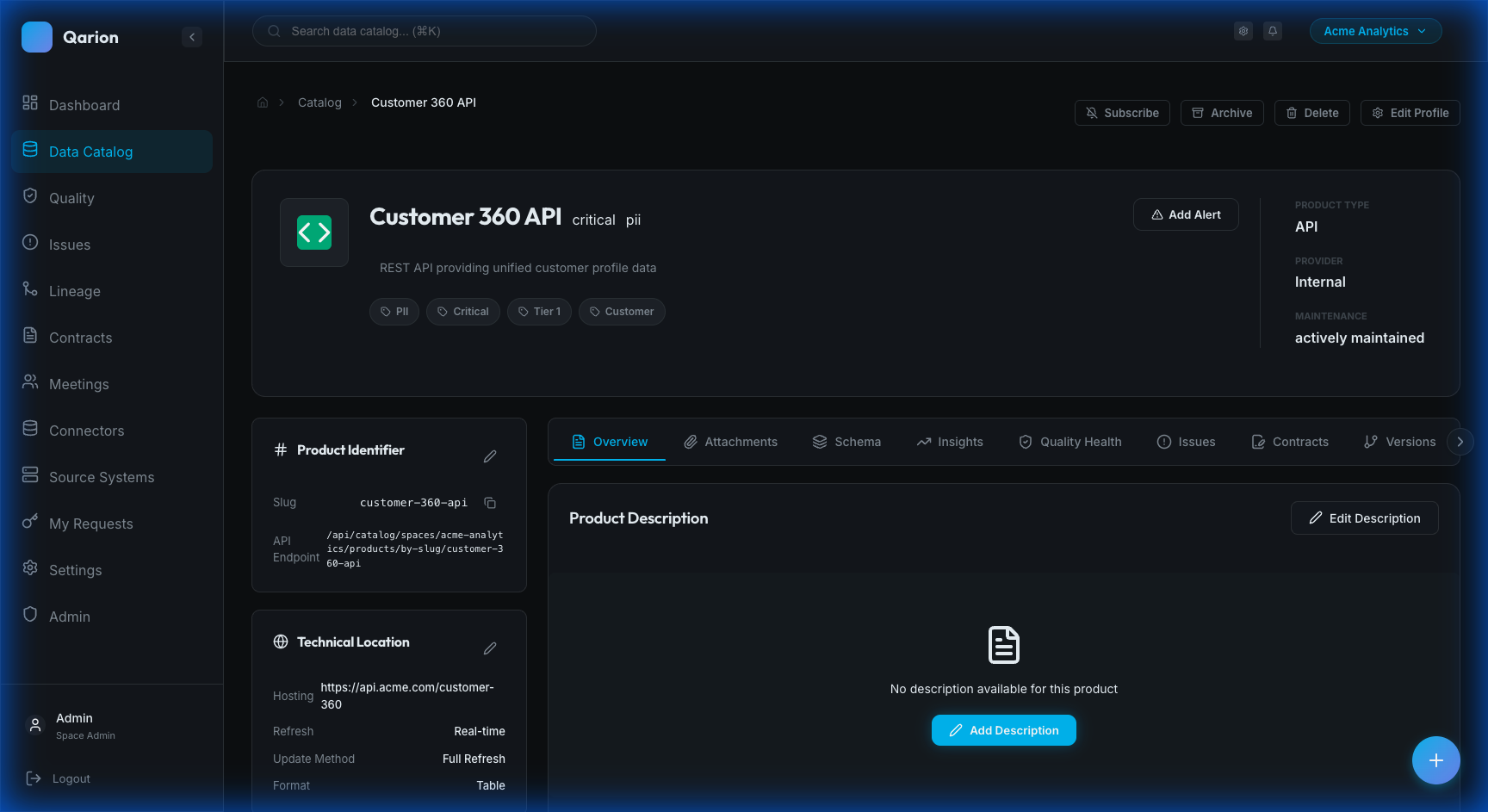
Main Content (Tabbed)
The central area contains tab-based navigation for different product aspects. The Overview tab provides detailed documentation and descriptions, while Schema lists field definitions and data types. Quality shows health metrics and check results, Issues tracks related data quality tickets, and Lineage displays upstream and downstream dependencies. You can also view associated SLA agreements in Contracts, release history in Versions, and permission information in the Access tab.
Technical Sidebar
The right sidebar displays at-a-glance metadata. This includes the Product Identifier (slug and API reference), Technical Location (hosting, refresh frequency, source system), Governance assignments (owner, steward, custodian), and a list of Attachments (reference documents and files).
Overview Tab
The Overview tab serves as the product's landing page, displaying the long_description rendered as rich markdown. This allows for detailed documentation including headings, formatted text, tables, code blocks, and embedded images to provide full context.
Editing Documentation
Users with edit permissions can modify this documentation by clicking the Edit button. This opens a markdown editor where you can write content and preview its formatting before saving. For automated assistance, look for the "Generate" option to let Qarion's AI suggest documentation drafts.
Schema Tab
The Schema tab details the product's data structure. Each field is listed with its Name, Data Type (such as String or Integer), and a Description. Additional attributes like Sensitivity flags (for PII) and Constraints (primary keys, nullability, uniqueness) are also displayed.
Adding and Tagging Fields
Space admins and product owners can add new fields via the Add Field button, requiring at least a name and data type. Fields can also be tagged for categorization; simply click a field to expand its details and add tags to identify characteristics like PII or business criticality.
Quality Tab
The Quality tab provides a comprehensive view of the product's data health.
Health Trends and Checks
A visual chart displays quality check results over time, using green bars for passing checks and red bars for failures to highlight trends. Below the chart, a list details monitored rules, showing the check name, type, current status (pass/fail/warning), and the last execution time. Clicking any item reveals further details.
Creating Quality Checks
You can establish new quality rules directly from this tab. Click Add Quality Check, configure the necessary parameters, and the new check will be automatically associated with the product.
Issues Tab
The Issues tab tracks data quality tickets, split into two views. Active Issues shows open and in-progress tickets with their title, priority, assignee, and status. Resolved Issues lists historical problems with reduced opacity, providing a record of past events. You can report new problems by clicking Create Issue, which opens a form to capture details and automatically links the ticket to the current product.
Lineage Tab
The Lineage tab visualizes the product's data dependencies through an interactive graph.
Graph & Controls
The graph centers on the current product, showing upstream sources (inputs) on the left and downstream consumers (outputs) on the right. You can adjust the visualization depth (1-3+ levels) for both upstream and downstream connections to control complexity.
Connection Management
Below the graph, panels list specific upstream sources and downstream consumers. Users with edit permissions can modify these relationships by clicking Add Upstream or Add Downstream, searching for the relevant products, and confirming the link. All connections are bidirectional; adding a product as upstream automatically establishes the corresponding downstream relationship.
Contracts Tab
This tab lists associated Service Level Agreements (SLAs). It displays the contract status (Active, Draft, Deprecated), identifies the producer and consumer parties, and specifies SLA thresholds such as freshness requirements. Clicking a contract opens its full details.
Versions Tab
Track the product's release history in the Versions tab. The Version Timeline lists releases in reverse chronological order, showing the version number, date, release notes, and any linked Git tags. The active production version is clearly marked as "Current". You can add new releases by clicking Add Version, entering the version details and notes, and optionally linking a Git commit.
Access Tab
Manage and view permissions in the Access tab.
Access Status & Requests
You can view your current access level, whether granted directly or via governance roles. If you need additional permissions, click Request Access, select the desired role, provide a justification, and submit the request for approval.
Checking User Access
Space admins and governance roles can utilize the user lookup feature. By entering a user's email, you can verify their specific access status and understand which roles granted them that permission.
Technical Sidebar
The sidebar offers quick reference metadata. It includes the Product Identifier (slug and API copy button), Technical Location details (hosting, refresh frequency, source system, provider), and Governance assignments (links to Owner, Steward, Custodian, and Data Architect profiles). It also features an Attachments section with a count badge, quick access to files, and upload capabilities.
Deep Linking
Tabs are accessible via unique URL hashes (#overview, #schema, #quality, #lineage), allowing you to share direct links to specific sections of the product detail page.