Source Systems Overview
Source Systems represent the external data platforms your organization uses—databases, data warehouses, cloud storage, and APIs. Qarion connects to these systems to synchronize metadata, manage access, and track data lineage.
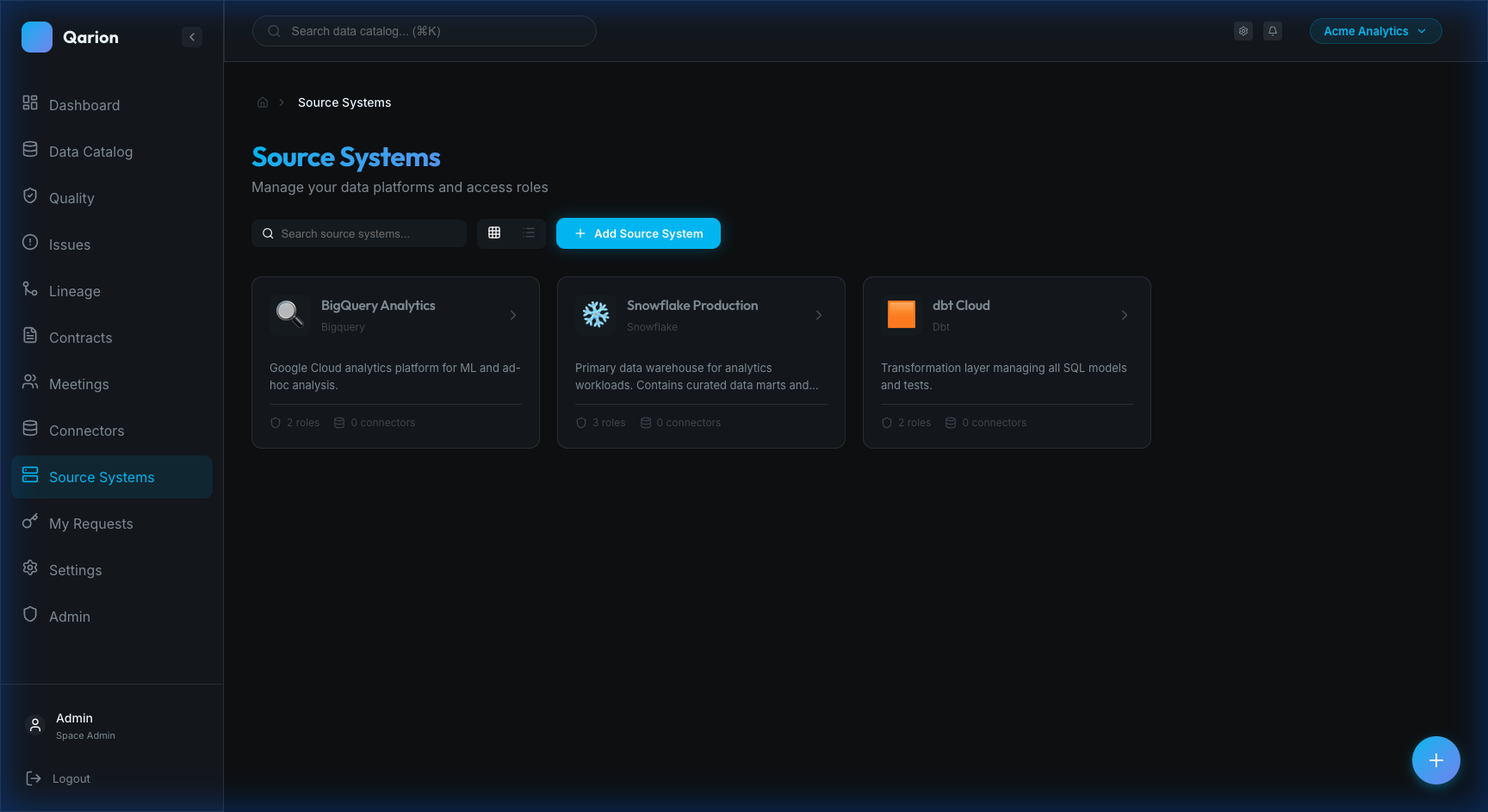
What is a Source System?
A Source System is a connection to an external data platform where your actual data resides. This includes Data Warehouses like Snowflake, BigQuery, and Databricks; relational databases such as PostgreSQL, MySQL, and SQL Server; cloud storage services like S3 and Azure Blob; and various APIs and tools such as dbt, Fivetran, and Airflow.
Why Connect Source Systems?
Connecting source systems to Qarion unlocks several key capabilities. It enables Metadata Sync to automatically import schema, table, and column information. It facilitates Access Governance by managing user permissions through role-based access. It allows for Lineage Tracking to map data flow from sources to downstream products, and provides Credential Management to securely store and handle connection details.
Source System Components
Basic Information
Each source system is defined by its Name, the Type of platform (e.g., Snowflake, BigQuery), a Description of its purpose and contents, and its current Status (active or inactive).
Credentials
Credentials are used to securely store connection details such as database connection strings, API keys and tokens, OAuth configurations, and service account credentials.
A source system supports multiple credentials — for example, a read-only credential for quality checks and a separate admin credential for metadata sync. Each credential can be independently created, updated, and deleted from the Credentials tab.
Credentials are securely encrypted at rest. Only users with appropriate permissions can view or modify credentials. Deleting a credential that is in use by a connector will prevent that connector from executing until a new credential is assigned.
Roles
Source systems define roles that map directly to access levels in the external platform. These roles can be synced from the source system, allowing users to request access. Once approved, these requests provision actual system access.
Sync Jobs
Sync jobs track the history of synchronization events, recording when metadata was last synced, the success or failure status of the job, and any changes that were detected during the process.
Viewing Source Systems
Source Systems List
Navigate to Source Systems in the sidebar to view all connected platforms. You can search by name or description, filter by platform type, and check the current connection status for each entry.
Source System Detail
Click any source system to view its full details. The Overview Tab displays basic information, connection status, and recent sync history. The Roles Tab lists available access roles with their permissions and provides buttons to request access. Credentials Tab (restricted to Admins) allows management of connection configuration and testing, while the History Tab provides an audit trail of sync executions and configuration changes.
Managing Source Systems
Adding a Source System
Administrators can add new source systems by navigating to the Source Systems page and clicking Add Source System. Select the platform type, enter the required connection details, configure the credentials, test the connection, and save to register the new system.
Configuring Credentials
Configuration varies by system type. Database/Warehouse connections typically require host, port, database name, username, password, and SSL settings. API integrations need keys, tokens, endpoints, or OAuth client details. Service Account setups usually involve uploading a JSON key file and specifying project identifiers.
Syncing Metadata
After establishing a connection, you can import metadata by clicking Sync Now on the source system page. Monitor the job's progress and review the imported metadata once the process completes.
Editing and Deleting
You can update connection details or credentials using the Edit function. If a system requires removal, the Delete option allows you to remove the source system configuration.
You can also delete individual credentials or the entire source system from the Source Systems list page using the delete button on each card, which opens a confirmation modal.
Deleting a source system unlinks all associated connectors but does not delete them. Connectors will remain in the space with their source system reference cleared. Data products linked to the source will show it as disconnected.
Deletion follows a safe cascade pattern:
- All connectors linked to the source system are unlinked (their
source_system_idis cleared) - All credentials, roles, and sync history records are removed
- The source system record is deleted
Access Management
Requesting Role Access
Users can request access to specific source system roles by navigating to the Roles tab, selecting the desired role, and clicking Request Access. You will need to provide a justification before submitting the request for approval.
Role-Based Permissions
Source system roles map directly to product access. Products specify which roles grant access, and once a role request is approved, the system automatically provisions the actual backend permissions. All access grants are tracked and auditable.
Integration with Products
Linking Products to Sources
Data products can reference source systems by specifying the source in their metadata and defining the physical location (such as schema and table). This link enables automatic lineage detection.
Lineage Discovery
Connecting source systems enables automatic upstream and downstream detection, allowing for cross-product dependency mapping and comprehensive impact analysis across different systems.
Best Practices
Connection Security
Use service accounts with the minimal required permissions and rotate credentials regularly. Always enable SSL/TLS for connections and audit credential access to ensure security.
Sync Strategy
Schedule regular metadata syncs and monitor for failures. It is also good practice to review large schema changes before importing them to prevent unexpected metadata shifts.
Documentation
Add clear descriptions to source systems and document the purpose and access levels of each role. Keeping connection instructions updated ensures team members can easily understand and manage the integrations.
Related Documentation
For further reading, see Data Lineage to understand data flow, Access Requests for managing permissions, and Product Details to learn how to link products to sources.